Only two remote holes in the default install, in a heck of a long time!
Goals
OpenBSD believes in strong security. Our aspiration is to be NUMBER
ONE in the industry for security (if we are not already there). Our
open software development model permits us to take a more
uncompromising view towards increased security than most vendors are
able to. We can make changes the vendors would
not make. Also, since OpenBSD is exported with
cryptography, we are able to take cryptographic approaches towards
fixing security problems.
Full Disclosure
Like many readers of the
BUGTRAQ mailing list,
we believe in full disclosure of security problems. In the
operating system arena, we were probably the first to embrace
the concept. Many vendors, even of free software, still try
to hide issues from their users.
Security information moves very fast in cracker circles. On the other
hand, our experience is that coding and releasing of proper security
fixes typically requires about an hour of work — very fast fix
turnaround is possible. Thus we think that full disclosure helps the
people who really care about security.
Audit Process
Our security auditing team typically has between six and twelve
members who continue to search for and fix new security holes. We
have been auditing since the summer of 1996. The process we follow to
increase security is simply a comprehensive file-by-file analysis of
every critical software component. We are not so much looking for
security holes, as we are looking for basic software bugs, and if
years later someone discovers the problem used to be a security
issue, and we fixed it because it was just a bug, well, all the
better. Flaws have been found in just about every area of the system.
Entire new classes of security problems have been found during our
audit, and often source code which had been audited earlier needs
re-auditing with these new flaws in mind. Code often gets audited
multiple times, and by multiple people with different auditing
skills.
Some members of our security auditing team worked for Secure Networks,
the company that made the industry's premier network security scanning
software package Ballista (Secure Networks got purchased by Network
Associates, Ballista got renamed to Cybercop Scanner, and well...)
That company did a lot of security research, and thus fit in well
with the OpenBSD stance. OpenBSD passed Ballista's tests with flying
colours since day 1.
Another facet of our security auditing process is its proactiveness.
In most cases we have found that the determination of exploitability
is not an issue. During our ongoing auditing process we find many
bugs, and endeavor to fix them even though exploitability is not
proven. We fix the bug, and we move on to find other bugs to fix. We
have fixed many simple and obvious careless programming errors in code
and only months later discovered that the problems were in fact
exploitable. (Or, more likely someone on
BUGTRAQ
would report that other operating systems were vulnerable to a newly
discovered problem, and then it would be discovered that OpenBSD had
been fixed in a previous release). In other cases we have been saved
from full exploitability of complex step-by-step attacks because we
had fixed one of the intermediate steps. An example of where we
managed such a success is the lpd advisory that Secure Networks put out.
New Technologies
As we audit source code, we often invent new ways of solving problems.
Sometimes these ideas have been used before in some random application
written somewhere, but perhaps not taken to the degree that we do.
Our proactive auditing process has really paid off. Statements like
This problem was fixed in OpenBSD about 6 months ago have become
commonplace in security forums like
BUGTRAQ.
The most intense part of our security auditing happened immediately
before the OpenBSD 2.0 release and during the 2.0→2.1 transition,
over the last third of 1996 and first half of 1997. Thousands (yes,
thousands) of security issues were fixed rapidly over this year-long
period; bugs like the standard buffer overflows, protocol
implementation weaknesses, information gathering, and filesystem
races. Hence most of the security problems that we encountered were
fixed before our 2.1 release, and then a far smaller number needed
fixing for our 2.2 release. We do not find as many problems anymore,
it is simply a case of diminishing returns. Recently the security
problems we find and fix tend to be significantly more obscure or
complicated. Still we will persist for a number of reasons:
Occasionally we find a simple problem we missed earlier. Doh!
Security is like an arms race; the best attackers will continue
to search for more complicated exploits, so we will too.
Finding and fixing subtle flaws in complicated software is
a lot of fun.
The auditing process is not over yet, and as you can see we continue
to find and fix new security flaws.
Secure by Default
To ensure that novice users of OpenBSD do not need to become security
experts overnight (a viewpoint which other vendors seem to have), we
ship the operating system in a Secure by Default mode. All non-essential
services are disabled. As the user/administrator becomes more familiar
with the system, he will discover that he has to enable daemons and other
parts of the system. During the process of learning how to enable a new
service, the novice is more likely to learn of security considerations.
This is in stark contrast to the increasing number of systems that
ship with NFS, mountd, web servers, and various other services enabled
by default, creating instantaneous security problems for their users
within minutes after their first install.
Cryptography
And of course, since the OpenBSD project is based in Canada, it is possible
for us to integrate cryptography. For more information, read the page
outlining what we have done with cryptography.
Advisories
Please refer to the links at the top of this page.
Watching our Changes
Since we take a proactive stance with security, we are continually
finding and fixing new security problems. Not all of these problems
get widely reported because (as stated earlier) many of them are not
confirmed to be exploitable; many simple bugs we fix do turn out to
have security consequences we could not predict. We do not have the
time resources to make these changes available in the above format.
Thus there are usually minor security fixes in the current source code
beyond the previous major OpenBSD release. We make a limited
guarantee that these problems are of minimal impact and unproven
exploitability. If we discover that a problem definitely matters for
security, patches will show up here VERY quickly.
People who are really concerned with security can do a number of
things:
If you understand security issues, watch our
source-changes mailing list and keep an
eye out for things which appear security related. Since
exploitability is not proven for many of the fixes we make,
do not expect the relevant commit message to say SECURITY FIX!.
If a problem is proven and serious, a patch will be available
here very shortly after.
Track our current source code tree, and teach yourself how to do a
complete system build from time to time (read /usr/src/Makefile
carefully). Users can make the assumption that the current
source tree always has stronger security than the previous release.
However, building your own system from source code is not trivial;
it is over 850MB of source code, and problems do occur as we
transition between major releases.
Install a binary snapshot for your
architecture, which are made available fairly often. For
instance, an amd64 snapshot is typically made available daily.
Reporting problems
If you find a new security problem, you can mail it to
deraadt@openbsd.org.
If you wish to PGP encode it (but please only do so if privacy is very
urgent, since it is inconvenient) use this pgp key.
Further Reading
Numerous
papers have been written by OpenBSD team members,
many dedicated to security.
Best Linux distro for privacy and security in 2020
(Image credit: Shutterstock)
Privacy and security have become increasing concerns for internet
users, not least with increased government monitoring and corporate
collection of user data, and a long string of well-publicized hack
attacked in which this user data has been stolen and mis-used.
While
Windows and macOS machines have some protections in place, and there
are additional options such as using a VPN or Tor browser, a number of
Linux distros are now available that put privacy and security at their
core.
For some of these Linux distros it's a case of building in privacy
protection by default using a variety of tools. For others, it's a
matter of including security software as standard for those who need to
do penetration testing.
Each of these distros has a different
focus on privacy and/or security according to user interests and needs.
Here we'll list the best 10 for you to consider.
Best Linux distro for privacy and security - at a glance
An extremely secure OS but for advanced users only
Risky apps are confined to separate virtual machines
Also uses sandboxing to protect system components
Can be tricky to set up and manage
While definitely not for novice users, Qubes
is one of the top privacy-conscious distros. The graphical installer
must be used to install the OS to your hard drive, which will be
encrypted.
Qubes OS uses the Xen Hypervisor to run a number of
virtual machines, compartmentalising your life into ‘personal’, ‘work’,
‘internet’ and so on for the sake of security. This means if you
accidentally download malware on your work machine for instance, your
personal files won’t be compromised.
The main desktop uses colour-coded windows to show different virtual machines, making it easy for you to tell them apart.
Tails
(which stands for ‘The Amnesiac Incognito Live System’) is probably the
most well-known privacy-focused distro. It can be run from a DVD in
Live mode whereby it loads entirely into your system RAM and will leave
no trace of its activity. The OS can also be used in ‘persistent’ mode
where your settings can be stored on an encrypted USB stick.
All
connections are routed through the anonymity network Tor, which conceals
your location. The applications in Tails have also been carefully
selected to enhance your privacy – for example, there’s the KeePassX
password manager and Paperkey, a command line tool used to export
OpenPGP secret keys to print on paper. There are also a small number of
productivity apps such as Mozilla Thunderbird and the powerful
LibreOffice suite.
You
can install more applications from Debian repositories via the command
line, but they will take some time to download as they pass through the
Tor network.
Do note that vulnerabilities are constantly
discovered with Tails so be sure to check for updates (as you should do
with any OS, of course).
Boasts a huge range of pen-testing and hacking tools
Large number of built-in hacking utilities
Constantly updated
64-bit Live ISO is over 11GB
This
pen-testing distro is based on Arch Linux, which may be good or bad
news depending on how familiar you are with its parent operating system.
While relatively new, this OS contains over 2,000 different hacking
tools, saving you the trouble of having to download what you need each
time.
The BlackArch
distro is constantly updated, with new ISO images being released on a
quarterly basis. These are very large in size (currently 14 GB) due to
the amount of pre-installed programs, but note that there's also a much
smaller Netinstall version which is only around 491 MB.
BlackArch
can be run live from a USB stick or CD, or installed onto a computer or
virtual machine. It can even be installed onto a Raspberry Pi to give
you a portable pen-testing computer that you can carry anywhere.
The
‘anti-forensics’ category is particularly worth mentioning as it
contains tools to scan your memory for passwords to encrypted devices.
This helps protect your machine from a ‘cold boot’ attack.
Named after the Hindu goddess, Kali
is one of the oldest and most well-known pen-testing Linux distros. The
Kali download page offers ISOs that are updated weekly, which can be
run in live mode or installed to a drive. Kali will also happily run on
ARM devices like the Raspberry Pi.
Kali’s reputation is so formidable that its creators offer training through the Kali Linux Dojo.
Lessons include customising your own Kali Linux ISO and learning the
fundamentals of pen-testing. For those unable to attend the training,
all educational resources from the classes are available on Kali’s
website free of charge.
Anyone interested in a career in Information Security can also take on Kali's paid penetration testing courses
which take place online and are self-paced. There's a 24-hour
certification exam which if passed will make you a qualified penetration
tester.
Stay under the radar via the anonymous I2P network
Little risk of leaking your real IP online
I2P connections generally faster than Tor
No way to access regular websites easily
IprediaOS
is a privacy-oriented operating system based on Fedora Linux and can be
run in Live mode or installed to your hard drive. Just as Tails OS
routes all your connections through the Tor network to anonymise your
connection, Ipredia routes all your network traffic through the
anonymous I2P network.
This is known as 'garlic routing',
a process whereby I2P establishes one-directional encrypted tunnels to
protect your data. This is theoretically much safer than Tor's 'onion
routing' which transmits data over established 'circuits', meaning they
can be targeted for surveillance.
Features
include anonymous email, BitTorrent client, and the ability to browse
eepsites (special domains with the extension .i2p). Unlike Tor, I2P
doesn’t act as a gateway to the normal internet, so Ipredia cannot
safely access regular websites.
The advantage of only accessing
eepsites is that your connection is truly untraceable. As I2P is
designed specifically for 'hidden' services, connection and download
speeds are generally much faster than routing through Tor as TAILS does.
Harness the power of virtual machines to stay safe online
Connections routed via the anonymous Tor network
Many privacy-specific apps preinstalled
VM performance isn’t as fast as local installation
Booting
a Live operating system is a nuisance as you have to restart your
machine, while installing it to a hard drive means there’s a risk of it
being compromised. Whonix offers an elegant compromise by being designed to work as a virtual machine inside the free program Virtualbox.
Whonix
is split into two parts. The first ‘Gateway’ routes all connections to
the Tor network for the second ‘Workstation’ part. This hugely reduces
the chance of DNS leaks which can be used to monitor what websites you
visit.
The OS has a number of privacy-conscious features. These include bundled apps such as the Tor Browser and Tox instant messenger.
As
it runs in a virtual machine, Whonix is compatible with all operating
systems that can run Virtualbox. Virtual machines can only use a portion
of your real system's resources, so Whonix will not necessarily perform
as fast as an OS that has been installed to a local hard drive.
Another distro bristling with pen-testing utilities
Visually stunning desktop and menus
Large range of pen-testing tools
Potential stability issues
This Parrot Security
distro comes to us from the Italian team Frozenbox. Like Kali and
BlackArch it categorises tools for easy access and even has a section
for the ones you most commonly use.
Parrot
is based on Debian 10 (Buster), the testing branch of this OS, so you
might encounter stability issues. However, note that Parrot has much
more colorful backgrounds and menus than its parent OS. As such, its
hardware requirements are rather more demanding than other pen-testing
distros such as Kali.
There
are four different versions available, Parrot Home, Parrot Security,
and Parrot Netinstall. The first two require a minimum of 2 GB of RAM,
while the third can run from 512 MB of RAM. However do note that Parrot
Security recommend 8 GB as best.
Our
final offering is TENS (Trusted End Node Security). Formerly known as
LPS (Lightweight Portable Security), this Linux distro has been designed
by none other than the US Air Force and is NSA approved [PDF].
The
public version of TENS is specifically designed to be run in Live mode,
meaning that any malware is removed on shutdown. It includes a minimal
set of applications but there is also a ‘Public Deluxe’ version which
comes with Adobe Reader and LibreOffice. All versions include a
customisable firewall, and it’s also worth noting that this operating
system supports logging in via Smart Card.
After updating your machine Now KeePass repository is available . Run the following command to Install KeePass.
ubuntu@ubuntu:~$ sudoapt-get install keepass2 -y
Now to check which version of KeyPass is installed run the following command
ubuntu@ubuntu:~$ keepass --version
If the above command gives you the version of Keepass ,it means the
installation has been successful. Or you can search KeePass in
applications.
How to use KeePass2
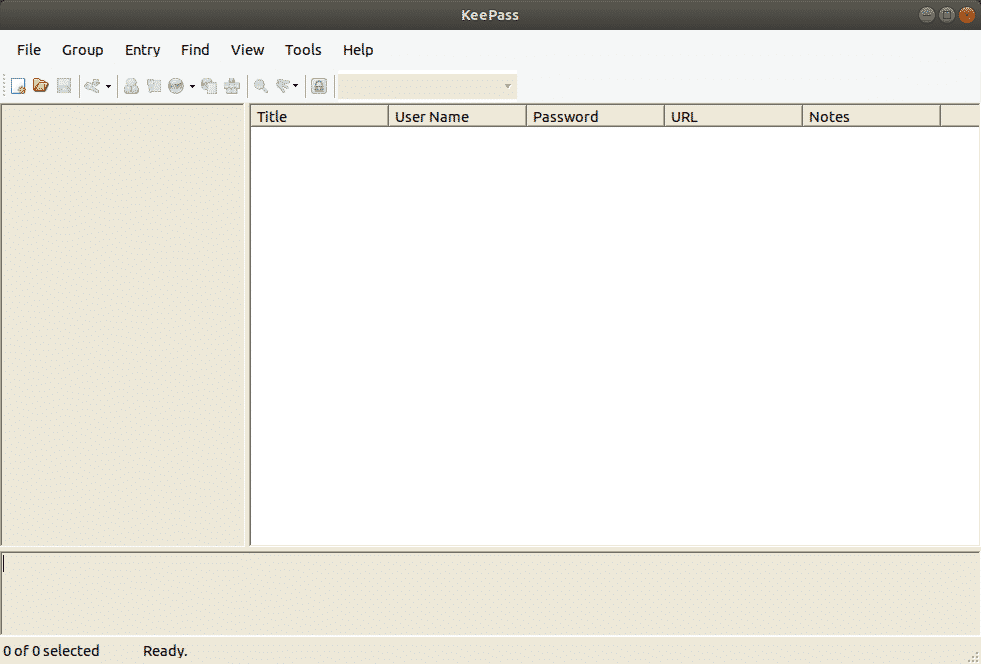
Here is how main Screen of KeePass looks like:
First, you need to make a database with your passwords. Set your
master password carefully because if you lose this password, you lose
all of your passwords
Create a new database and set master Password by clicking on New on Top Left Corner .
Setting the Database Password
What stands between the Hacker trying to get into your password
database and your password database is the Password you give to your
KeePass database. To make it strong, you should make it as complicated
as possible by using special characters ,Punctuation and numbers. As
soon as you start typing Password ,the yellow line will tell you
Keepass’ opinion of your decision.The higher it goes,the better.
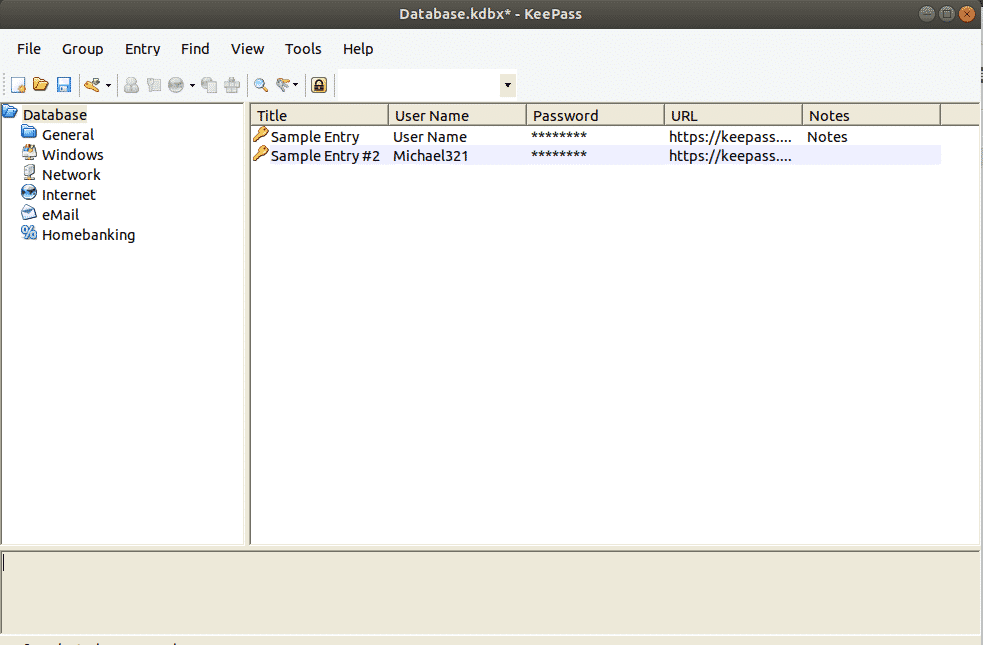
Here you go,Now you have a database and you can start generating
passwords. On the left side ,there are login categories. These are
categories that come by default in KeePass, which can be deleted or
edited.New ones can be made as many as one wants to. Two default entries
are also present which can be deleted or renamed easily.
Generating Your First Password
In order to generate a password,, click on the little yellow key at right most off the top of the password database.
Now a new window will open , fill in the desired fields .The title
will be the name of the website or software or whatever you want .The
user name, well that is of your own choice. The URL would be the link of
the site or to the software or whatever you typed in the title field
.None of these fields are mandatory but it helps.
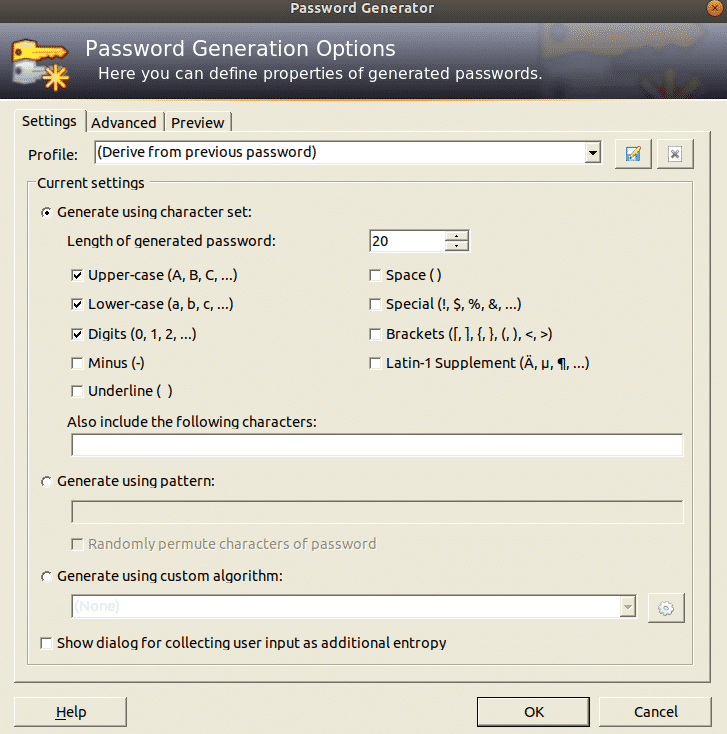
By clicking the key icon, you can generate a new password. You will
get this menu, pick Open Password Generator. At that point pick the
length of your password (a length of least 25 characters is alright). At
that point pick the sorts of characters you need in your password.
Click OK and the password box will be loaded up with the password.
Click on the button to see the password. You can try Password Generator
for another spin in case you don’t like it.
Exporting Passwords from a Browser
In order to create a KeePass passwords database we have to import passwords .
Chrome’s password management system is very good. Passwords go to
password.google.com and your whole password database goes to Chrome.
This works for the vast majority, yet in case you’re hoping to escape
from Google, and proceed onward to KeePass2, here’s the place to begin
First, go to the address bar and search for “ chrome://flags/”
.Now what you have to do is to find Password Importing feature. You can do it by scrolling a whole day OR
Find it by pressing “Ctrl + F” and typing “Import ”
Turn on the “Password Import” feature .Now , find “Enable Material
Design Settings” from the list and change it to “Disabled”. It will ask
you to relaunch the browser.Relaunch it , Presently when the program
re-opens, open settings and search for
chrome://settings/passwords?search=passwords in the address bar. Now
clicking the export button will save the password database file as a CSV
file on your system .
Importing Passwords
First of all create a database as mentioned above.
Import the Password Database file by clicking on the Import button in File menu.
For importing Chrome’s password database ,click on the CSV file where you stored it.
Syncing Passwords
On the off chance that you have various PCs, the most ideal approach
to synchronize the passwords database is to introduce Dropbox. By moving
the password database file and key inside the dropbox folder, every
single change made to the passwords database (including and expelling
new passwords, and so forth) will in a split second match up across
PCs..
Utilizing KeePass in Google Chrome
The KeePass game plan works fine isolated, however in the event that
you need to solidly coordinate your local database with your program,
here’s how :
First, enter the KeePass directory:
ubuntu@ubuntu:~$ cd/usr/lib/keepass2
Inside the KeePass2 folder, make a plugins folder, and then download the HTTP plugin.
Now we just have to install a browser extension which is easily available for Chrome and Firefox.
Logging In
At the point when you need to sign into that site, right-click the
section in KeePass and pick Copy Username. Then click in the username
box on the website and CTRL + V to paste the username I. Right-click on
the entry again and do the same process with the Password box.
Conclusion:
KeePass makes creating and overseeing troublesome
passwords as simple and easy as could be. Now there is no longer any
excuse to say that maintaining unique and strong passwords is tiresome
and stressful. KeePass makes it as easy as it could be. Now you only
have to remember one Password and you can unlock the password database
with it .After reading this blog, you will be able to use KeePass
easily.


![[OpenBSD 6.9]](https://www.openbsd.org/images/puffy69.jpg)